Your smartphone can give paramedics critical medical information—even when it is locked. Here’s how to set it up.
All of us (hopefully) protect our phones with a passcode, fingerprint, or facial recognition. That is important for privacy, but it can create a challenge during an emergency: if you are unconscious or unable to communicate, first responders may not know about your medical conditions, allergies, medications, or who to contact.
Both iPhone and Android devices allow you to make selected emergency information accessible from the lock screen without giving anyone access to the rest of your phone. Setting it up takes only a few minutes and could provide valuable information when every second matters.
What information should you include?
Focus on information that could affect your immediate treatment:
- Your full name and date of birth
- Important medical conditions
- Serious allergies and reactions
- Current medications
- Blood type, if known
- Emergency contacts and their relationship to you
- Any other essential instructions, such as the presence of a pacemaker
Keep the information concise and current. Review it whenever your medications, medical conditions, or emergency contacts change.
Remember that anything you make available from the lock screen can be viewed by someone holding your phone. Include information that would be useful in an emergency, but avoid unrelated sensitive details such as your Social Security number, insurance credentials, home security information, or financial information.
How to set up Medical ID on an iPhone
Apple stores emergency information in the Health app under Medical ID.
- Open the Health app.
- Tap Summary.
- Tap your profile picture in the upper-right corner.
- Select Medical ID.
- Tap Edit.
- Enter the information you want to provide, including medical conditions, allergies, medications, blood type, and other relevant notes.
- Scroll to Emergency Contacts and tap Add Emergency Contact.
- Select the person from your contacts and identify your relationship.
- Turn on Show When Locked. This is the setting that allows first responders to see the information without your passcode.
- If available, turn on Share During Emergency Call. This may allow your Medical ID to be shared automatically with supported emergency services when you call or text them.
- Tap Done.
Apple notes that automatic sharing with emergency services is not available in every country or region. Your Medical ID can still be displayed from the lock screen when Show When Locked is enabled. View Apple’s current Medical ID instructions.
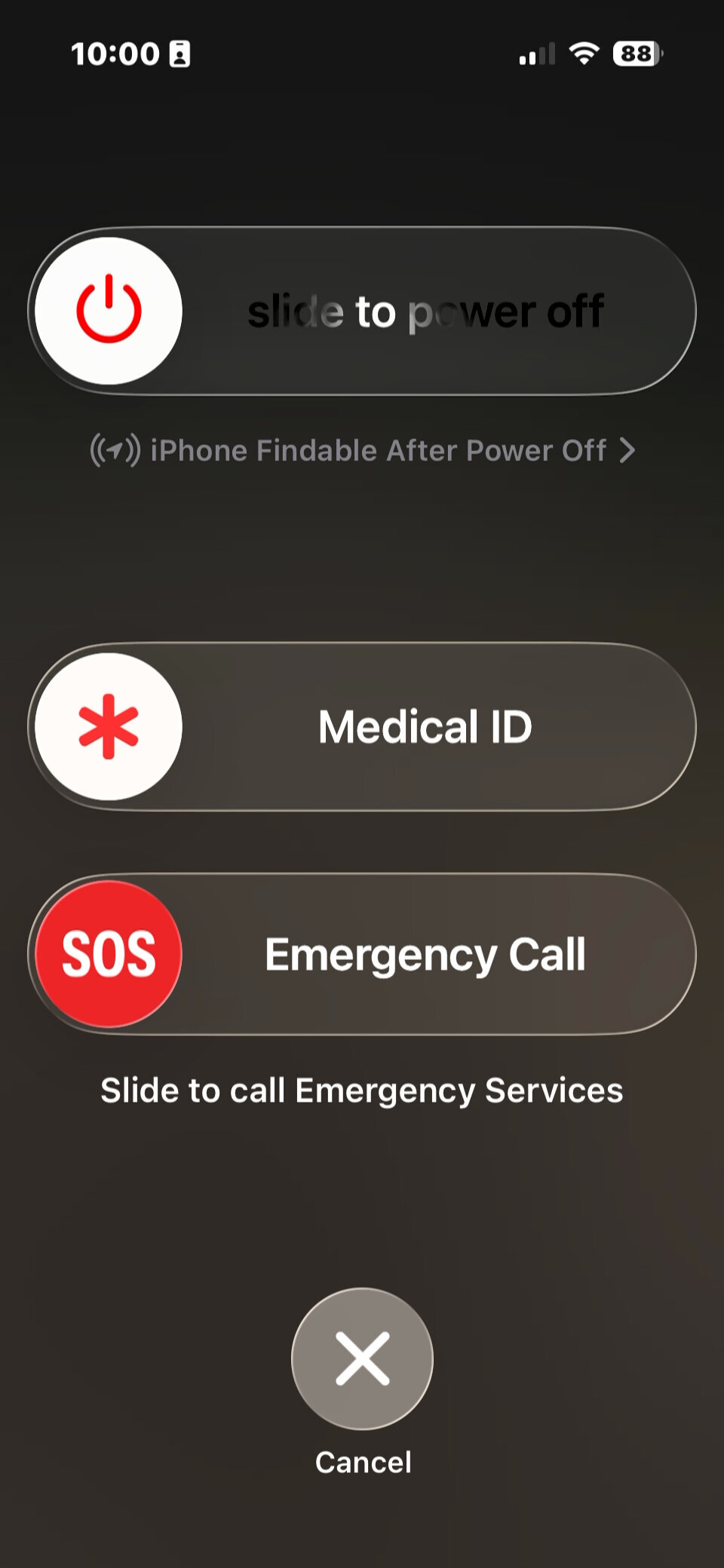
How a first responder can access it
From the locked iPhone:
- Wake the phone and go to the passcode screen.
- Tap Emergency.
- Tap Medical ID.
The responder can view the emergency information and call the listed emergency contacts, but cannot open your messages, email, photos, or other protected content.
How to set up emergency information on Android
Android menu names can vary slightly depending on the phone manufacturer and software version. On many current Android devices:
- Open Settings.
- Tap Safety & emergency.
- Select Medical information or Emergency information.
- Enter relevant details such as your medical conditions, allergies, medications, and blood type.
- Return to Safety & emergency.
- Tap Emergency contacts.
- Select Add contact and choose one or more trusted people.
- Make sure the option allowing emergency information to appear while the phone is locked is enabled, if your device provides that setting.
If you cannot find the menu, use the search field inside Settings and search for emergency information, medical information, or safety and emergency.
How a first responder can access it
On many Android phones:
- Wake the phone and open the lock screen.
- Swipe up or tap Emergency or Emergency call.
- Tap Emergency information or View emergency information. On some devices, it may need to be tapped twice.
The wording and placement can differ by device, so it is important to test your own phone after completing the setup.
Instructions for Samsung Galaxy devices
On current Galaxy devices, Samsung provides separate areas for medical information and emergency contacts:
- Open Settings.
- Tap Safety and emergency.
- Tap Medical info.
- Enter your medical conditions, allergies, current medications, blood type, and other relevant information.
- Tap Save.
- Return to Safety and emergency.
- Tap Emergency contacts.
- Tap Add emergency contact, choose the appropriate people, and tap Done.
From a locked Galaxy phone, a responder can swipe up or select the phone icon, tap Emergency call, and then open the available medical or emergency information. Exact screens can vary by model and software version.
Test it before you need it
Once you finish, lock your phone and try to retrieve the information without entering your passcode. Confirm that:
- Your medical information is visible.
- Your emergency contacts are correct.
- The listed phone numbers are current.
- No information is included that you would not want visible from the lock screen.
Encourage family members—particularly children with phones, older adults, frequent travelers, and anyone with a serious medical condition or allergy—to do the same.
It is a small bit of technology housekeeping that takes only a few minutes. In an emergency, however, those few minutes of preparation could help first responders make faster, better-informed decisions.
Share this blog: